Map Chargers to Assets
The Socket-to-Asset Map on the OCPP Broker tab tells Pleevi which asset of your site configuration each connector is. Without it, Pleevi cannot link a charging session to a driver.
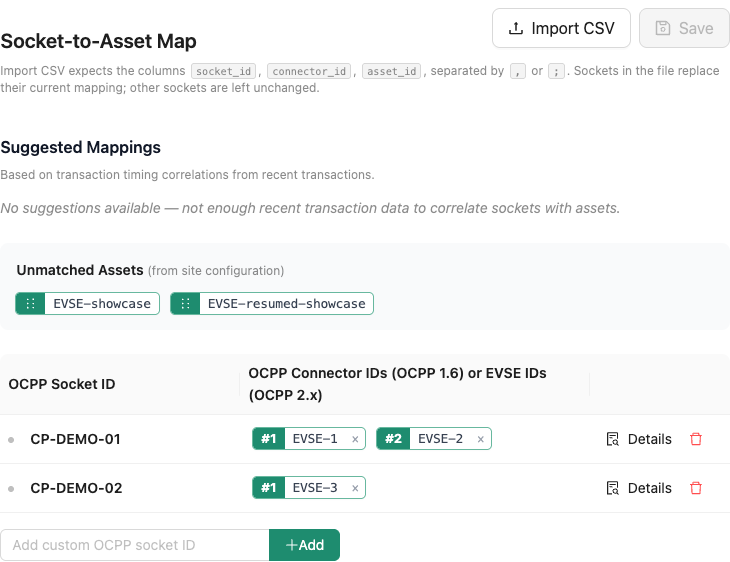
Each row is one charger, named by its charge point ID. Its connectors are numbered #1, #2 and so on: the connector ID in OCPP 1.6, or the EVSE ID in OCPP 2.x.
Map by hand
- Drag the assets from Unmatched Assets onto the row of each charger. The first asset in a row is connector
#1, the second#2. - Drag the assets within a row to change the order, or remove one with its cross.
- A charger that has not connected yet can be added with Add custom OCPP socket ID.
- Click Save and confirm the changes.
After a few charging sessions, Suggested Mappings proposes a mapping per charger, based on the timing of its transactions. Apply a suggestion, then click Save.
Import from a CSV file
For many chargers, click Import CSV and select a file with the columns socket_id, connector_id and asset_id, separated by , or ;. Start from the example file:
socket_id,connector_id,asset_id
CP-AMS-001,1,charger-amsterdam-01-left
CP-AMS-001,2,charger-amsterdam-01-right
CP-AMS-002,1,charger-amsterdam-02
CP-AMS-003,1,charger-amsterdam-03-left
CP-AMS-003,2,charger-amsterdam-03-right
- The header row is optional.
- Every
asset_idmust exist in the site configuration, and each asset can be on one connector only. - The connector IDs of a charger must run from 1 without gaps.
- Chargers in the file replace their current mapping. Chargers not in the file stay as they are.
If a line is wrong, nothing is imported and the portal lists each problem with its line number. A correct file only fills in the table: check it and click Save.
See what a charger sends
Click Details on a charger's row to see its OCPP messages and the measurements and transactions of its assets. See Troubleshoot transaction linking.